
Reading documents
The reader, the working copy, highlights and notes, figures, the references and links a document holds, and downloading it as Word, PDF, EPUB or Markdown.
Click a document's name to open it.
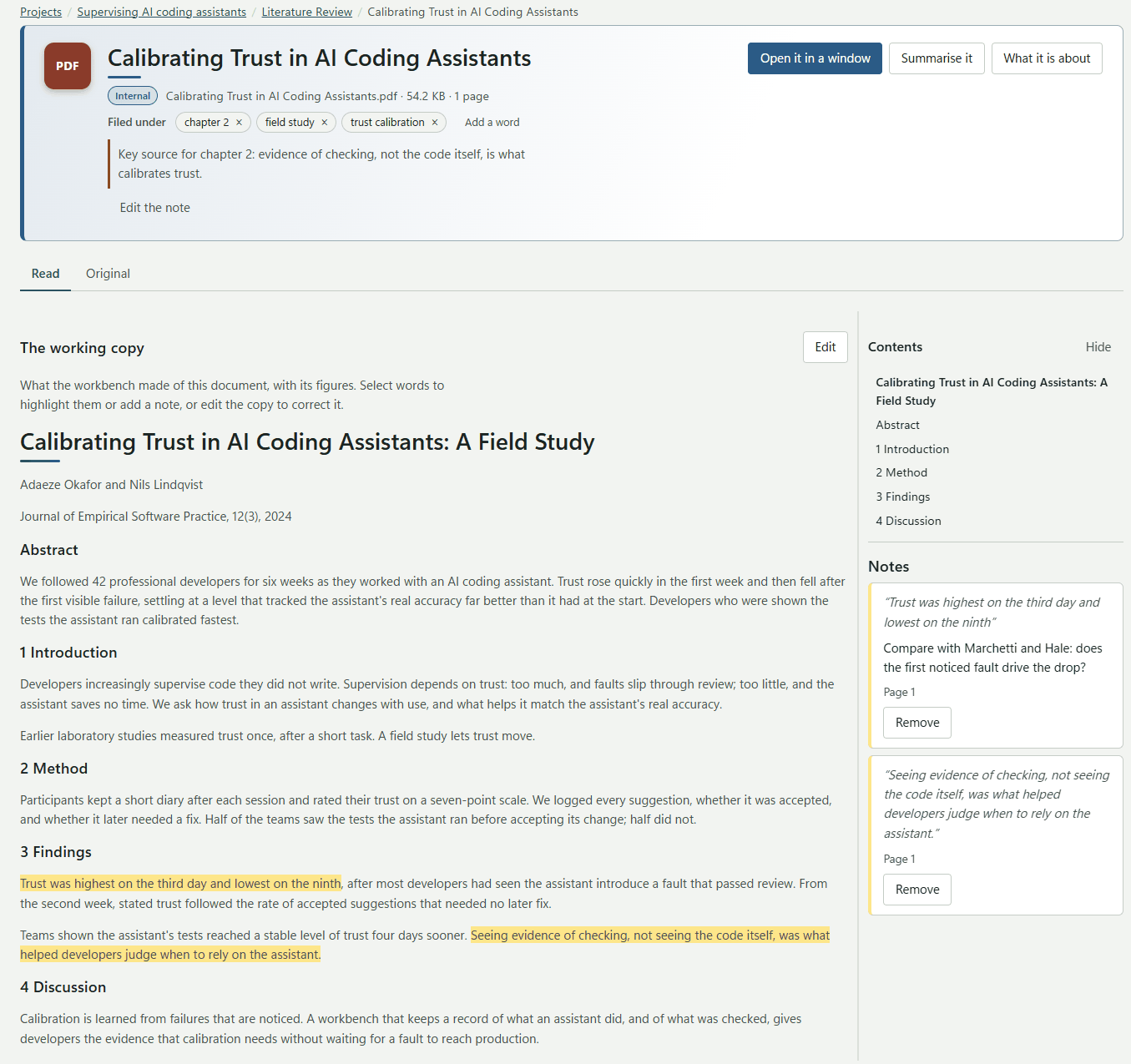
The header
The header says what the document is: its title, its label, and the file, its size and its number of pages. Beside them are two buttons:
- Open it in a window: the original file (or Open the link for a link).
- Document settings: everything else you can do with the document, in a drawer.
Document settings
Document settings opens a drawer over the right of the page. It has these sections:
- Ask a model: Summarise it, What it is about and Sharpen the summary (see Summaries). While a model works, its button shows how far it has got. When the answer is in, the drawer closes, so you see the new summary on the page. If the document's label keeps it from the chosen model, the buttons are greyed out, and a note beside them says why and how to change it.
- Take it away: Download ▾, a menu of the formats the document can be taken away in (see below).
- This picture, for a picture document: Correct this picture.
- About: the file, its size, the day it was added and its label; Filed under, its tags; the note on why you kept it, which the browser extension fills in for pages you save; and What it is, the bibliographic record (see Working with a folder's documents).
Close it with Close, the Escape key, or a click on the page behind.
When a document has no summary yet, the page says No summary yet, with Summarise it, where the summary will appear.
Downloading a document
Download ▾, under Take it away in the Document settings drawer, opens a menu. Choose one and it downloads straight away:
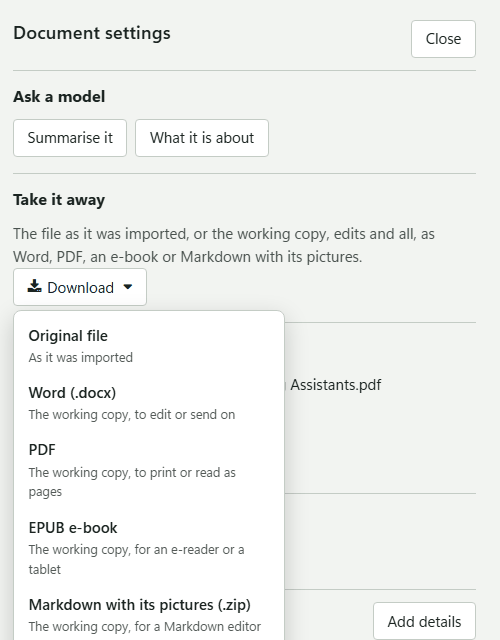
| Choice | What you get |
|---|---|
| Original file | The file as it was imported: the PDF, Word file or picture you added. |
| Word (.docx) | The working copy as a Word document, to edit or send on. |
| The working copy laid out as pages, to print or read on screen. | |
| EPUB e-book | The working copy as an e-book, for an e-reader or a tablet. Each top-level heading is a chapter, with a table of contents. |
| Markdown with its pictures (.zip) | The working copy as Markdown, with an images folder beside it. |
The Word, PDF and EPUB files begin with a title page saying they are the working copy of the original file, and the day they were written out. All of them include your own edits to the working copy.
A document has a working copy once the workbench has read it, so a new import offers only the original file at first. A saved link offers no original file, since what is stored is only its address.
The Markdown zip
The zip is named after the document. It holds:
- Title.md: the working copy as it is now, with any changes you have made to it.
- An images folder: every picture the copy shows, both figures taken from the paper and pictures you pasted in.
The pictures' links in the Markdown point at their files in the images folder, so the document opens with its pictures in Obsidian, VS Code, Typora or any other Markdown editor, and Pandoc can turn it into Word or LaTeX.
Pictures
Only pictures from the document's own project are included, in every format. If a picture's file is missing, it is left out (the e-book says where it would have been), and the rest still downloads.
You can also download from a folder's list, without opening the document: see Working with a folder's documents.